GPT Image 2.5: Sharper Details, Faster Generation, Two API Models
Every week, people create more than 3 billion images across ChatGPT Images and the GPT Image models in the API. On September 8, 2026, OpenAI released ChatGPT Images 2.5, the new version of its image model. It produces more natural lighting and richer textures, preserves subjects from reference photos more reliably, and follows editing instructions better across multiple turns. Latency is down by up to 50% compared with Images 2.0.
For developers, the API gets two new models. GPT Image 2.5 Flare is the small model, tuned for speed, with image quality comparable to GPT Image 2. GPT Image 2.5 Sunburst is the base model, tuned for quality, with higher image quality than GPT Image 2. Both share the improvements in precise editing and subject preservation.
What changed in generation quality
Images 2.5 is better at working from reference photos. When you give it a picture of a person, place, or object, the model carries recognizable features across new settings and styles more consistently. Lighting and textures look more natural, and distinctive details are more likely to survive the transformation.
The model also handles complex visual instructions better. Images that include real-world information have more accurate content. It can manage more complex layouts, including transparent backgrounds, and it reflects visual styles more faithfully so results stay closer to what you asked for.
Precision editing and multi-turn consistency
Editing is where Images 2.5 shows the biggest practical gains. The model is better at changing only what you asked for while keeping the rest intact, even with complex subjects and backgrounds. In the API, this lets you update a single element (a product, a background, a piece of copy) while preserving the subject, composition, and brand treatment around it.
Across longer ChatGPT conversations, earlier changes are more likely to stay consistent. Each new edit builds on the previous work without degrading image quality over time. The OpenAI prompting guide notes one caveat: repeated edits can still change details you intended to preserve. Restate those constraints each turn and inspect every result. If a region must stay pixel-identical, composite the approved edit into the original image instead of relying on the prompt alone.
New features in ChatGPT
Sketch is a new feature that lets you draw directly in ChatGPT and use the drawing as a visual guide. You can sketch a room layout, the contour of an outfit, or a rough doodle, and ChatGPT turns it into a complete image. Add a description of the style and any details you want. To try it, type "@Sketch" in ChatGPT. You do not need to be a professional artist; it is just another way to get closer to the image you have in mind.
Templates cover popular creative formats like posters and merch. Instead of starting from a blank canvas, you pick a template and add the information, design elements, and styles you want.
You can now share an image together with the prompt that produced it. Someone else can take the same idea, bring in their own photos and details, and make a version that feels like theirs.
The two API models
GPT Image 2.5 Flare is the default for most applications. It delivers higher-quality images than GPT Image 2 at 50% lower latency. It fits creator and social content, product experiences, visual search, rapid prototyping, and high-volume generation.
GPT Image 2.5 Sunburst is built for premium visual workflows that benefit from tighter control across edits. Use it for production-ready campaign creative or polished product imagery. It takes longer to generate.
The OpenAI guide gives a simple rule for choosing. Start with Flare when speed is the priority. Start with Sunburst when quality requirements are demanding. Once Sunburst meets your quality bar, test Flare with the same prompts and inputs. Switch to Flare if it also meets the bar and improves latency. Keep Sunburst when its quality advantage is necessary for your workflow.
API parameters
| Parameter | Settings |
|---|---|
model | gpt-image-2.5-flare (small) or gpt-image-2.5-sunburst (base) |
quality | auto (default), low, medium, high, xhigh, or max |
size | auto or a custom resolution. Common: 1024x1024, 1536x1024, 1024x1536, 2048x2048, 2048x1152, 3840x2160, 2160x3840 |
background | auto, opaque, or transparent |
For custom resolutions, use WIDTHxHEIGHT. Each edge must be no more than 3,840 pixels. Both edges must be multiples of 16. The longer-to-shorter edge ratio must not exceed 3:1. Total pixel count must be between 655,360 and 8,294,400. Outputs above 3,686,400 total pixels (2560x1440) are experimental.
Choose the model before tuning quality. For the first comparison, keep the quality setting, prompt, reference images, and dimensions unchanged. The same quality label does not mean the same image quality or response time across models. If the output falls short, test a higher quality setting. Once it meets your requirements, test lower settings to see whether they preserve acceptable quality while cutting latency. Use xhigh or max only when they fix an unmet quality requirement within your latency budget. A higher setting does not guarantee a better result for every prompt.
For transparent assets, explicitly request background="transparent" and use PNG or WebP. Check the decoded alpha channel, including hair, glass, shadows, and object edges. Use output_compression only for JPEG or WebP, not PNG.
Prompting fundamentals
The OpenAI prompting guide lays out eight practices that work across both models.
- Define the result. Name the subject and intended use (product photograph, advertisement, diagram). Specify composition, aspect ratio, and placement constraints. For complex requests, organize the prompt as scene, subject, details, and constraints.
- Choose a maintainable format. Short prompts, descriptive paragraphs, JSON-like structures, instructions, and tags can all express the same intent. Pick the one that makes the requirements easiest to read and update.
- Describe visible details. Name materials, lighting, colors, and the visual medium. Request "photorealistic" or "real photograph" explicitly when that is the goal. Treat camera specifications as cues for appearance, not a guarantee of exact physical simulation.
- Specify people and actions. Describe body framing, relative scale, gaze, and interaction with objects. Instructions like "full body visible, feet included" or "hands naturally gripping the handlebars" make the pose clearer.
- Specify exact text. Put required wording in quotes and describe its position and typography. Spell unusual words or brand names letter by letter when needed. Ask for no extra text, then check spelling and legibility in the output.
- Separate changes from constraints. For edits, say "change only X" and list the details to preserve: identity, geometry, layout, lighting, labels. State exclusions such as unwanted text, logos, or watermarks.
- Assign roles to references. Identify each input by number and purpose: subject, style, clothing, background. Explain how the inputs should combine and which elements should move where.
- Iterate deliberately. Pass the previous output as the next edit input, request one change, and repeat the details to preserve. Compare results before adding more instructions.
Example: control style and lighting
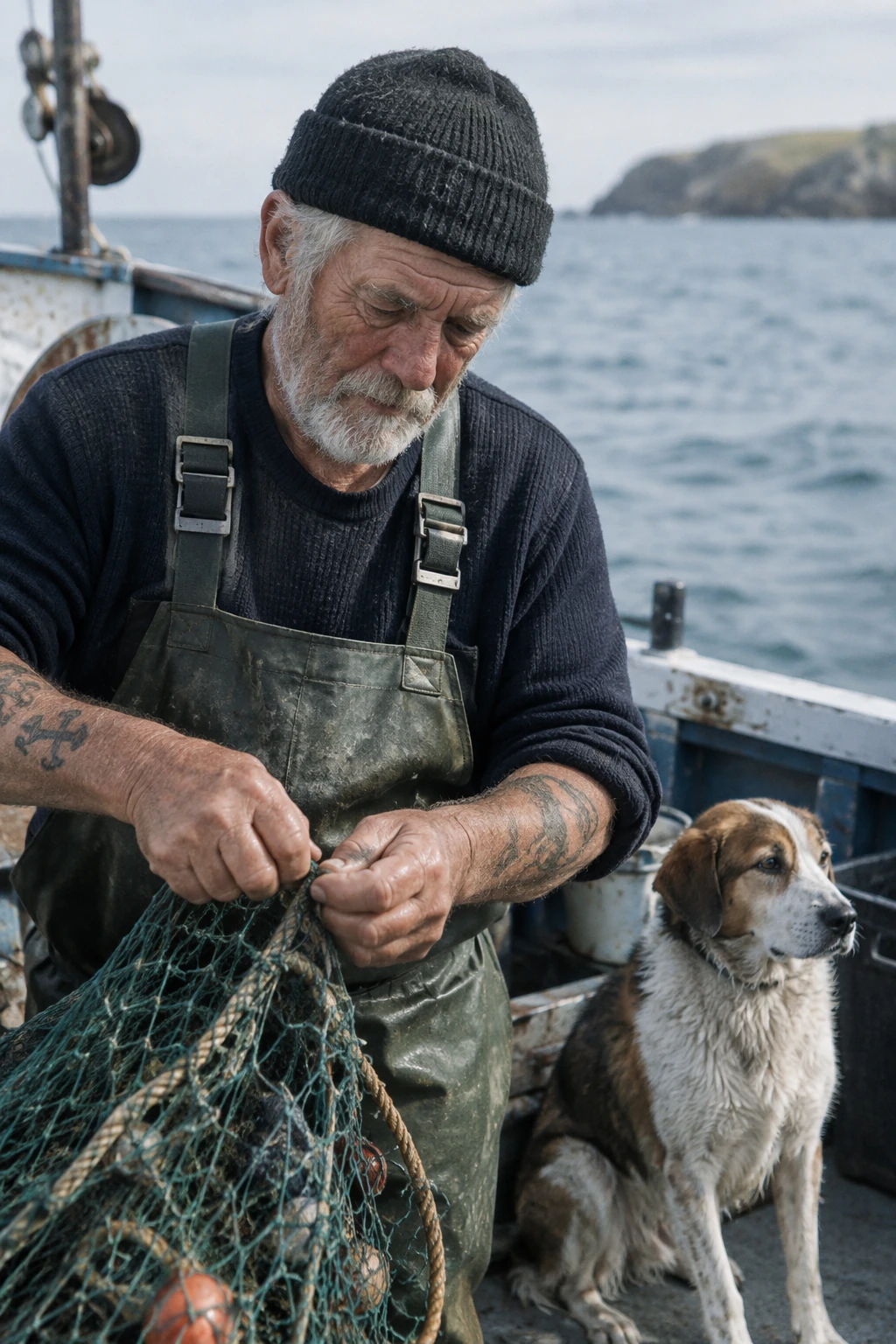
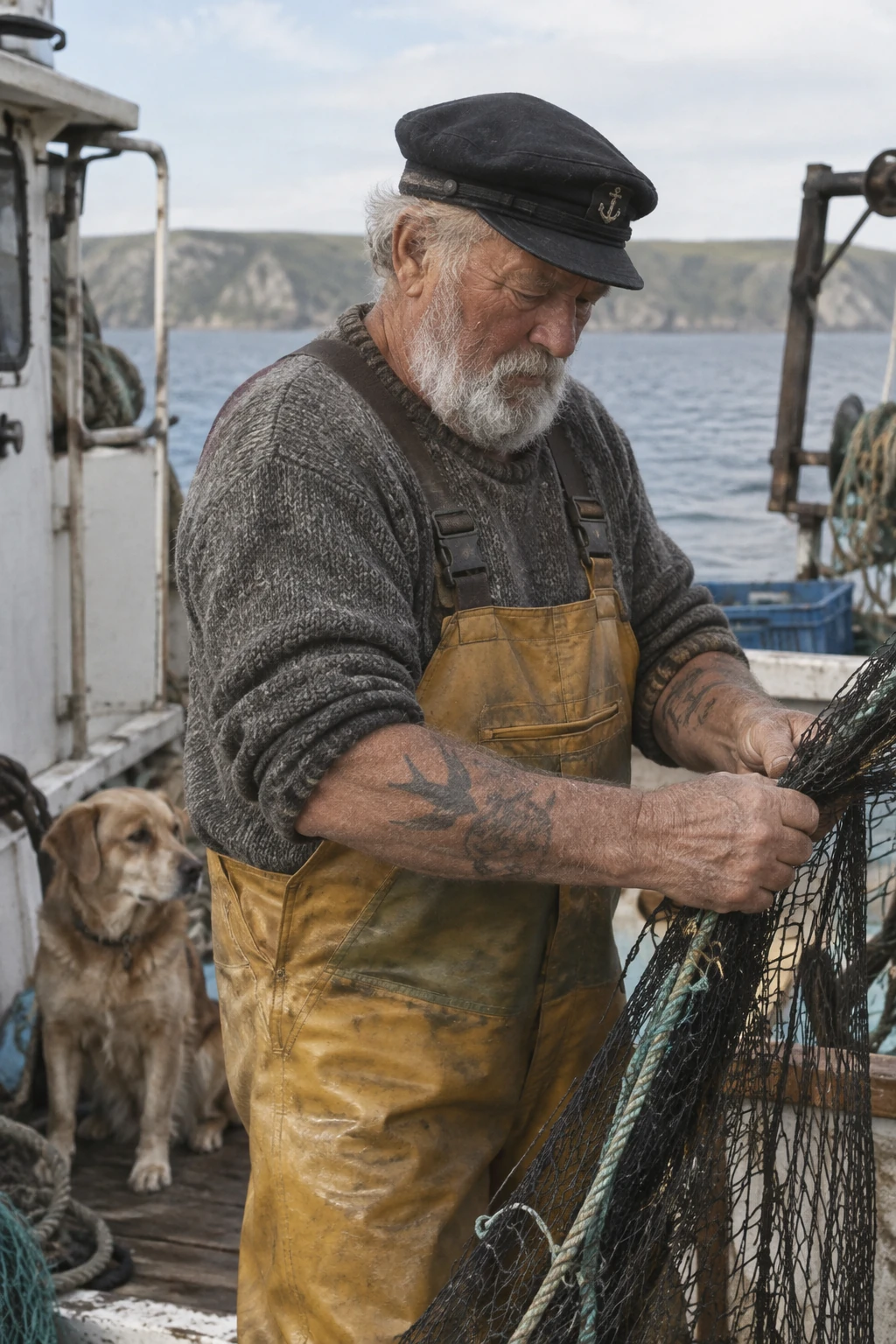
This prompt asks for a candid photograph and explicitly excludes heavy retouching. Generation settings: size="1024x1536", quality="medium".
Create a photorealistic candid photograph of an elderly sailor standing on a small fishing boat.
He has weathered skin with visible wrinkles, pores, and sun texture, and a few faded traditional sailor tattoos on his arms.
He is calmly adjusting a net while his dog sits nearby on the deck. Shot like a 35mm film photograph, medium close-up at eye level, using a 50mm lens.
Soft coastal daylight, shallow depth of field, subtle film grain, natural color balance.
The image should feel honest and unposed, with real skin texture, worn materials, and everyday detail. No glamorization, no heavy retouching.
GPT Image 2.5 Flare output:
GPT Image 2.5 Sunburst output:
Example: render exact text
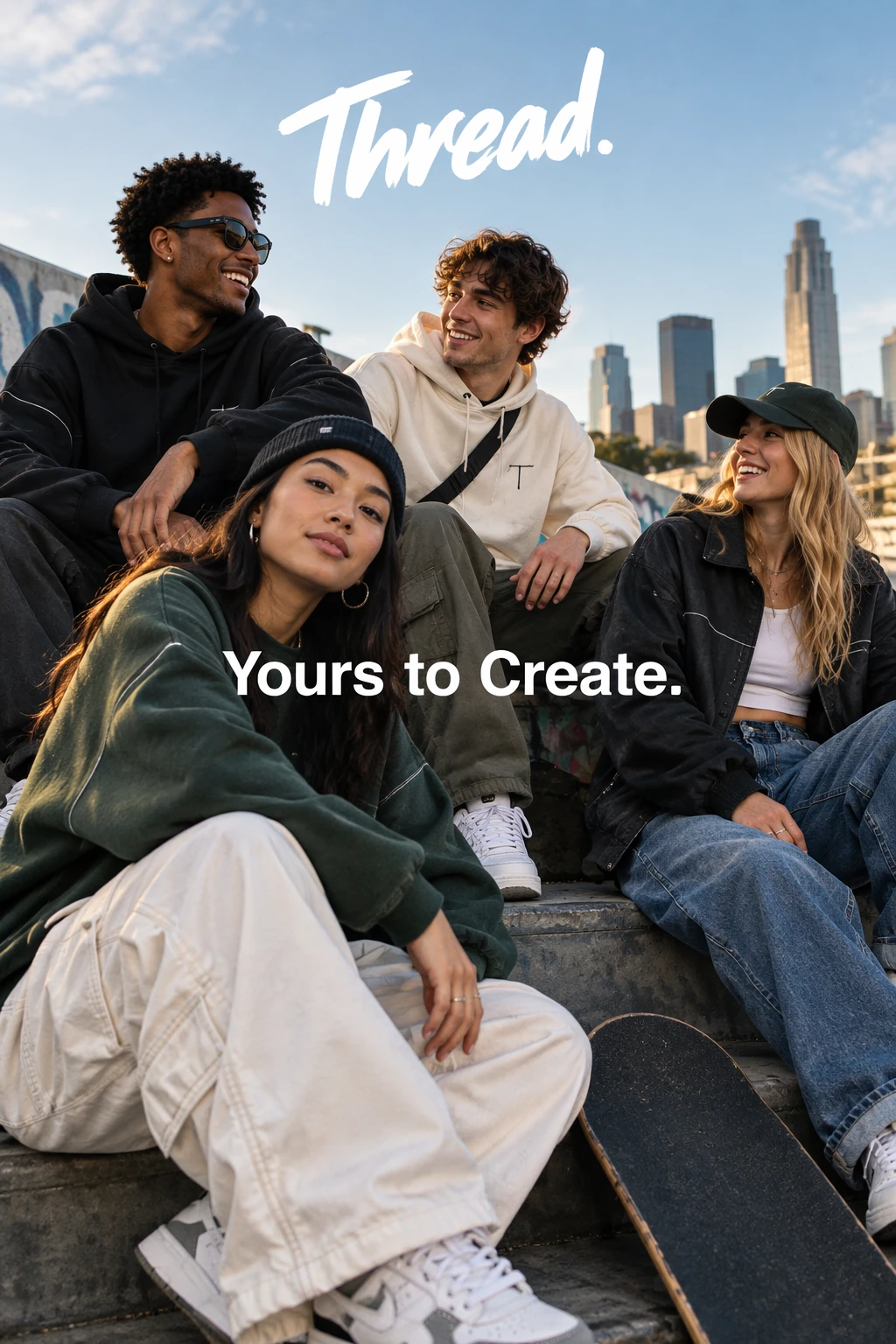
This prompt asks for a streetwear campaign image with a specific tagline rendered exactly once. Generation settings: size="1024x1536", quality="medium".
Give me a cool in culture ad / fashion shot for a brand called Thread.
It's a hip young street brand. The ad shows a group of friends hanging out together with the tagline "Yours to Create."
Make it feel like a polished campaign image for a youth streetwear audience: stylish, contemporary, energetic, and tasteful.
Use clean composition, strong color direction, natural poses, and premium fashion photography cues.
Render the tagline exactly once, clearly and legibly, integrated into the ad layout.
No extra text, no watermarks, no unrelated logos.
GPT Image 2.5 Flare output:
Example: transparent logo with background="transparent"
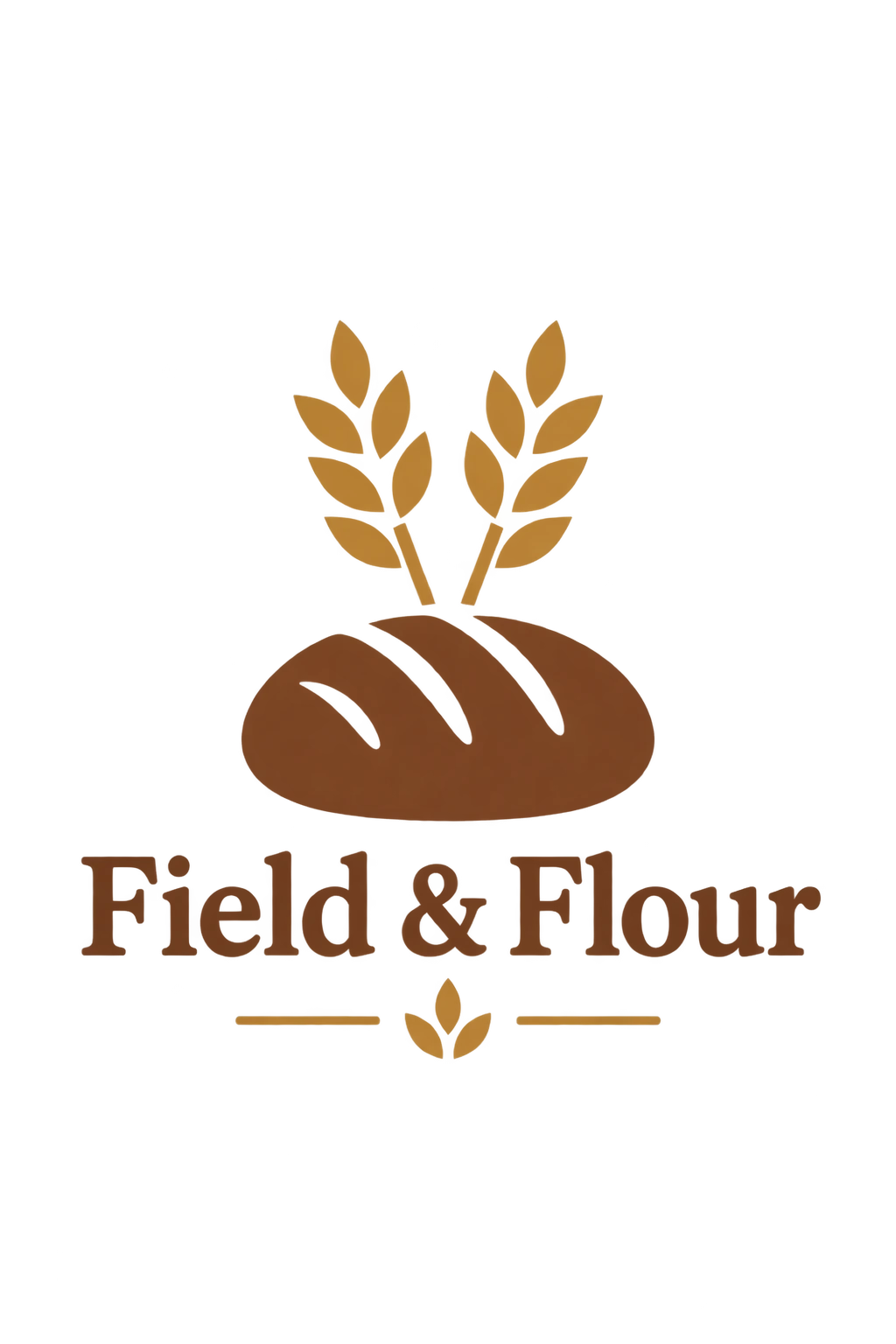
For transparent assets, request background="transparent" in the API and use PNG or WebP. This prompt asks for a clean bakery logo on a fully transparent background. Generation settings: size="1024x1536", quality="medium", background="transparent", output_format="png", n=1.
Create an original, non-infringing logo for a company called Field & Flour, a local bakery.
The logo should feel warm, simple, and timeless. Use clean, vector-like shapes, a strong silhouette, and balanced negative space.
Favor simplicity over detail so it reads clearly at small and large sizes. Flat design, minimal strokes, no gradients unless essential.
Fully transparent background. Deliver a single centered logo with generous padding, clean alpha edges, and no solid backdrop, scenery, checkerboard, or watermark.
GPT Image 2.5 Flare output:
Example: keep a character consistent across scenes
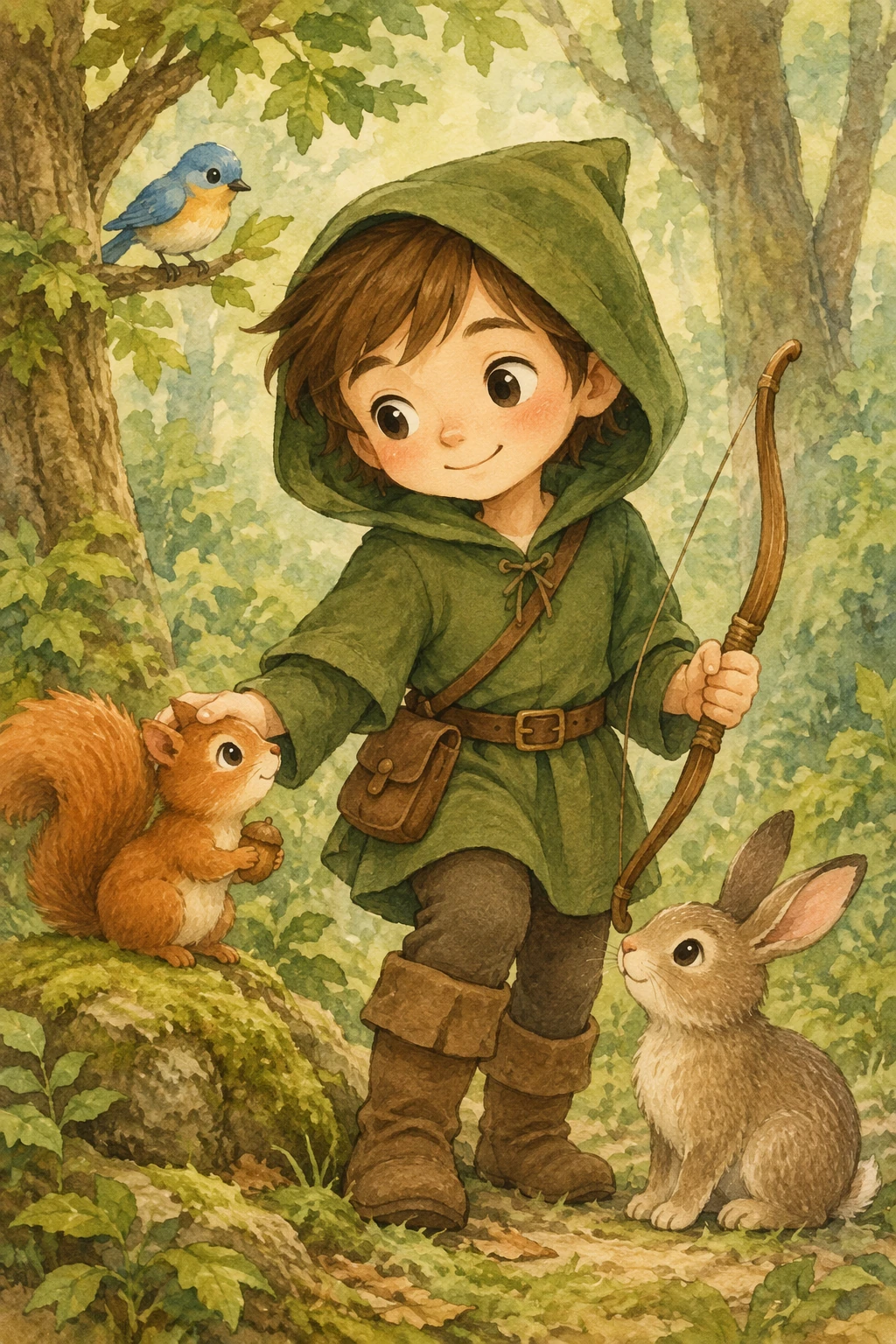
For a book with multiple illustrations, create a reusable character reference and repeat the defining details each turn. This prompt establishes the character. Generation settings: size="1024x1536", quality="medium".
Create a children's book illustration introducing a main character.

Character:
A young, storybook-style hero inspired by a little forest outlaw,
wearing a simple green hooded tunic, soft brown boots, and a small belt pouch.
The character has a kind expression, gentle eyes, and a brave but warm demeanor.
Carries a small wooden bow used only for helping, never harming.

Theme:
The character protects and rescues small forest animals like squirrels, birds, and rabbits.

Style:
Children's book illustration, hand-painted watercolor look,
soft outlines, warm earthy colors, whimsical and friendly.
Proportions suitable for picture books (slightly oversized head, expressive face).

Constraints:
- Original character (no copyrighted characters)
- No text
- No watermarks
- Plain forest background to clearly showcase the character
GPT Image 2.5 Flare output:
GPT Image 2.5 Sunburst output:
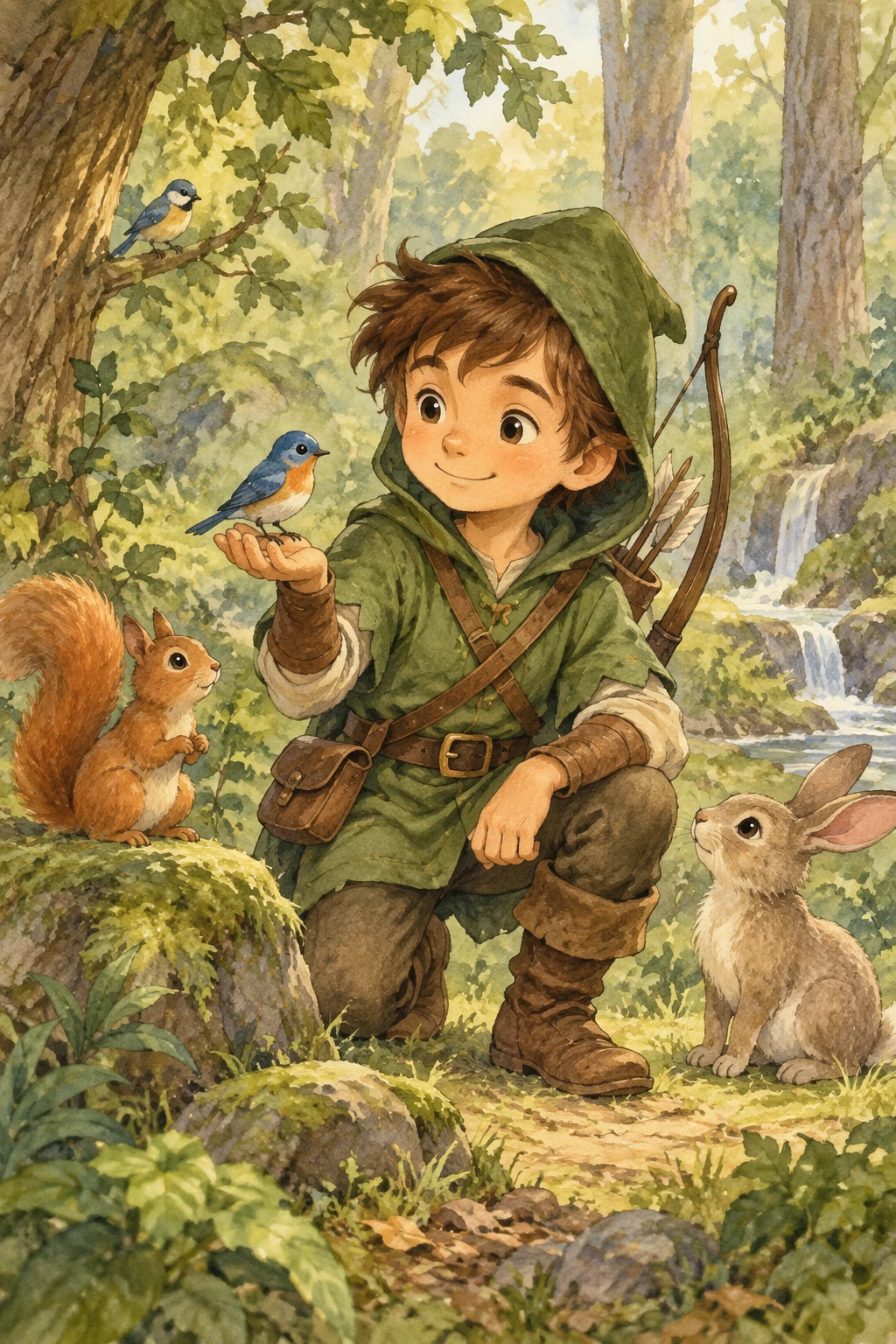
To continue the story, pass the generated character image as the next edit input. Describe a new scene and repeat the appearance constraints so the character stays consistent. The follow-up below keeps the same hero but moves him into a winter rescue scene.
Continue the children's book story using the same character.

Scene:
The same young forest hero is gently helping a frightened squirrel
out of a fallen tree after a winter storm.
The character kneels beside the squirrel, offering reassurance.

Character Consistency:
- Same green hooded tunic
- Same facial features, proportions, and color palette
- Same gentle, heroic personality

Style:
Children's book watercolor illustration,
soft lighting, snowy forest environment,
warm and comforting mood.

Constraints:
- Do not redesign the character
- No text
- No watermarks
Example: insert a person into a scene
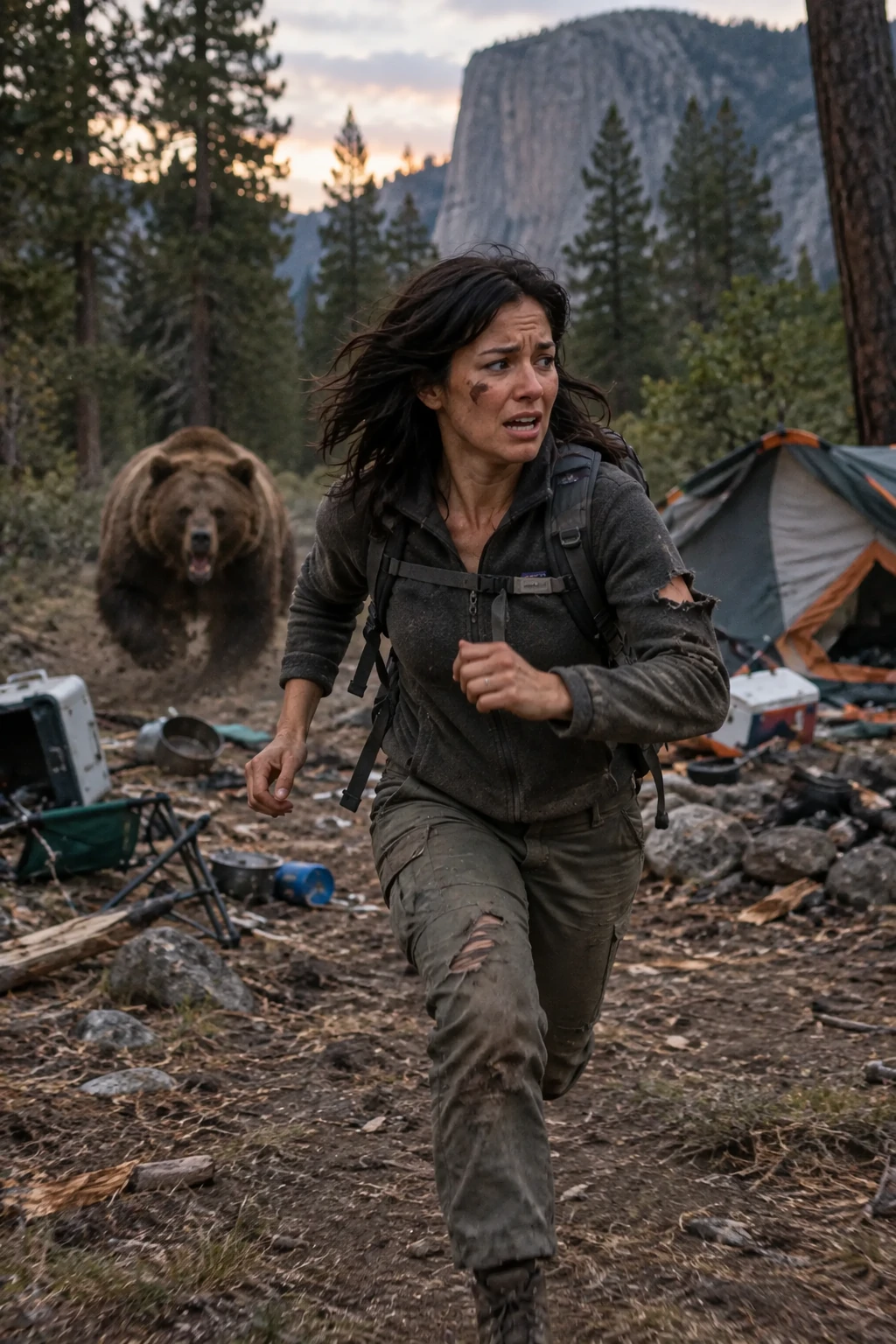
This prompt places a person into a new scene while preserving their identity. It specifies natural lighting, believable detail, body framing, gaze, and interaction with the scene. Edit settings: size="1024x1536", quality="medium".
Generate a highly realistic action scene where this person is running away from a large, realistic brown bear attacking a campsite. The image should look like a real photograph someone could have taken, not an overly enhanced or cinematic movie-poster image.
She is centered in the image but looking away from the camera, wearing outdoorsy camping attire, with dirt on her face and tears in her clothing. She is clearly afraid but focused on escaping, running away from the bear as it destroys the campsite behind her.
The campsite is in Yosemite National Park, with believable natural details. The time of day is dusk, with natural lighting and realistic colors. Everything should feel grounded, authentic, and unstyled, as if captured in a real moment. Avoid cinematic lighting, dramatic color grading, or stylized composition.
GPT Image 2.5 Flare output:
Migration from GPT Image 2
The OpenAI guide recommends a six-step migration path.
- Save a baseline. Collect representative production prompts and reference images, including difficult edits, exact text, faces, product geometry, and transparent assets. Record the current model, request settings, and results.
- Choose the first candidate. If GPT Image 2 already meets your quality requirements, start with Flare and test for a latency improvement. If GPT Image 2 falls short on a complex use case, start with Sunburst and first establish that it meets your quality requirements. Keep the prompt, references, dimensions, and output format unchanged for the first comparison.
- Check the complete result. Compare instruction following, identity and product preservation, text accuracy, unwanted changes, and transparency. Repeat requests to measure consistency. For editing workflows, test the complete sequence of edits as well as individual steps.
- Test for a latency gain after quality passes. If you started with Sunburst and it meets your quality requirements, evaluate Flare against the same requirements. Switch only if the quality remains acceptable and latency improves.
- Tune one setting at a time. Compare quality levels before rewriting the prompt. Measure typical and slow responses, failures, retries, and cost per accepted image. Confirm current pricing rather than assuming the faster model costs less.
- Roll out by workflow. Once the candidate passes your acceptance criteria, move a small share of traffic, monitor the same measures, and expand gradually. Keep the previous model available for rollback while it remains supported.
Safety
ChatGPT Images 2.5 builds on OpenAI's existing safeguards, with checks on prompts and images to help prevent harmful outputs. OpenAI continues to use C2PA metadata and invisible watermarking to help identify images made with its tools. The system card is available on OpenAI's deployment safety site.